Common LinkedIn API Errors and Fixes
Troubleshoot LinkedIn API issues—authentication, scopes, bad requests, rate limits, and server errors with clear fixes.
Share this article
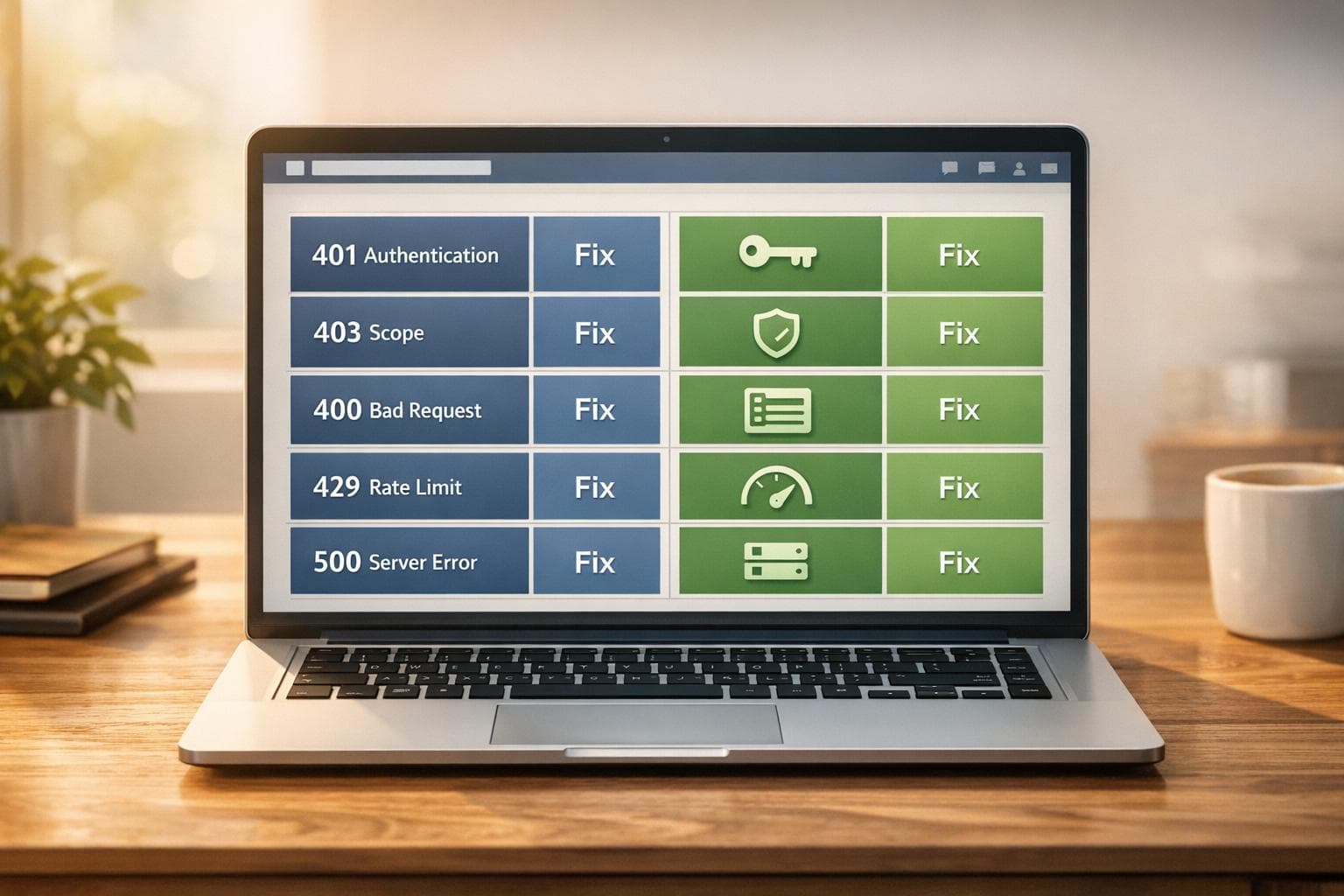
- 401 Errors (Authentication Issues): Caused by expired or invalid tokens. Fix by refreshing tokens before expiration and ensuring proper header formatting (Authorization: Bearer <access_token>).
- 403 Errors (Permission Problems): Occur due to missing OAuth scopes, deprecated endpoints, or user role restrictions. Verify required permissions in the Developer Portal and update your access token.
- 400 Errors (Bad Requests): Triggered by malformed JSON, incorrect URNs, or missing fields. Validate payloads against LinkedIn’s API documentation.
- 429 Errors (Rate Limits): Result from exceeding API request quotas. Use exponential backoff with jitter to handle retries and monitor rate limit headers.
Common LinkedIn API Errors and Fixes
When working with the LinkedIn API, errors can disrupt key operations like data syncs, lead generation, and content management. These issues often stem from authentication problems, permission mismatches, or rate limits. Here’s a quick breakdown of the most frequent errors and how to address them:
- 401 Errors (Authentication Issues): Caused by expired or invalid tokens. Fix by refreshing tokens before expiration and ensuring proper header formatting (
Authorization: Bearer <access_token>). - 403 Errors (Permission Problems): Occur due to missing OAuth scopes, deprecated endpoints, or user role restrictions. Verify required permissions in the Developer Portal and update your access token.
- 400 Errors (Bad Requests): Triggered by malformed JSON, incorrect URNs, or missing fields. Validate payloads against LinkedIn’s API documentation.
- 429 Errors (Rate Limits): Result from exceeding API request quotas. Use exponential backoff with jitter to handle retries and monitor rate limit headers.
- 5xx Errors (Server Issues): Indicate temporary LinkedIn server problems. Retry with exponential backoff and log key identifiers for support.
LinkedIn API Error Codes Quick Reference Guide
401 Unauthorized Errors: Authentication Problems
What Causes 401 Errors
A 401 Unauthorized error happens when your request lacks valid authentication credentials. Essentially, the LinkedIn API is rejecting your attempt to access its resources because your authentication is either incorrect or no longer valid.
The most frequent issue? Expired access tokens. LinkedIn access tokens are only valid for 60 days [4][5][2]. Once they expire, every API call you make will return a 401 error. Although refresh tokens last longer - 365 days - they also have a fixed expiration date and can't be extended by usage [3].
"A 401 typically means your access token is expired, malformed, or invalid." - AeroLeads [1]
Other common causes include malformed authentication headers. For example, if you forget to include the "Bearer" prefix or use an incorrect Authorization header format, LinkedIn’s servers won’t recognize your credentials [2]. Additionally, user actions like revoking app access or changing their LinkedIn password will invalidate all active tokens [5][2][1].
When a 401 error occurs, LinkedIn usually provides a JSON error response. This includes details like a message (e.g., "Empty oauth2_access_token"), a serviceErrorCode of 401, and a status field that helps you determine whether the token is missing, malformed, or expired [2].
Now, let’s dive into how you can resolve these authentication issues.
How to Fix 401 Errors
First, double-check your authentication header. It should follow this exact format: Authorization: Bearer <access_token> [2]. Even a small typo, like a missing space, can trigger a 401 error.
If your access token has expired, use your refresh token to get a new one. Send a POST request to https://www.linkedin.com/oauth/v2/accessToken with the following parameters in an x-www-form-urlencoded body:
grant_type=refresh_token- Your
refresh_token client_idclient_secret
This process allows you to swap your expired token for a fresh one without requiring the user to log in again [6].
"LinkedIn refresh tokens expire after a fixed one-year window. The countdown starts at issuance and does not repeat when you refresh." - Nango [3]
To stay ahead of token expiration, track when tokens are issued in your database. Set reminders or alerts to prompt re-authentication before the 60-day or one-year expiration deadlines [3]. A reliable token refresh system can help you avoid over 95% of 401 errors [1].
If you encounter an invalid_grant error during a refresh attempt, it’s a sign that the refresh token is no longer valid. In this case, stop all background processes and ask the user to re-authenticate through the full OAuth flow [3]. For high-traffic applications, consider using distributed locks or "single-flight" logic to prevent multiple processes from trying to refresh the same token at once [3].
| Error Message | Cause | Recommended Fix |
|---|---|---|
Empty oauth2_access_token |
Missing or empty Authorization header | Verify the header is present and correctly formatted [2] |
Invalid access token |
Token is malformed or incorrect | Re-run the OAuth flow to get a valid token [2] |
Expired access token |
Token expired after 60 days | Use the refresh token to obtain a new access token [2] |
The token has been revoked |
User revoked app access in settings | Ask the user to re-authenticate and grant access [2] |
Unknown authentication schema |
Unrecognized header format | Ensure the header uses the Bearer schema [2] |
403 Forbidden Errors: Permission and Scope Problems
Why 403 Errors Occur
A 403 Forbidden error indicates that LinkedIn's API acknowledges your authentication but denies access to the requested resource. Unlike a 401 error - which signals invalid credentials - a 403 error confirms your identity but highlights a lack of necessary permissions.
These errors generally arise from three levels: the Application Layer (approval status in the Developer Portal), the Scope Layer (missing OAuth permissions in the access token), or the User/Entity Layer (insufficient administrative roles for Company Pages or Ad Accounts) [1]. Most recurring issues stem from end-user permissions, which often complicate LinkedIn outreach automation efforts.
Another common cause is outdated API versions. For example, using deprecated endpoints like /v2/me instead of the newer /v2/userinfo or requesting obsolete scopes like r_basicprofile instead of r_liteprofile can trigger 403 errors [8][10]. Developers sometimes mistakenly request w_member_social instead of w_organization_social when working with Company Page APIs [1].
LinkedIn's API also has a known caching delay. After updating permission scopes and generating a new access token, the token might retain old permissions for up to 5 minutes [8][9].
"After much discussion, team has confirmed they will consider this as part of product improvement but for now 5mins TTL is expected behavior" - LinkedIn Developer Support [8]
To pinpoint the issue, examine the JSON error response. Look for fields such as serviceErrorCode (commonly 100), code (e.g., ACCESS_DENIED), and message, which specifies the missing permission [8][2].
The following steps outline how to address these permission and scope-related errors.
How to Fix 403 Errors
Resolving 403 errors requires addressing specific permission issues. Here’s how to get started:
- Check Product Access in the Developer Portal: Open the "Products" tab in LinkedIn's Developer Portal and confirm that the required API (e.g., Marketing Developer Platform or Community Management API) has a green "Added" checkmark [1]. Requesting a scope in your code won't work unless the product has been approved.
-
Inspect Your Access Tokens: Decode the token (using tools like jwt.io) to verify it includes the required scopes. For example, accessing member handles via
/v2/clientAwareMemberHandlesrequires permissions liker_emailaddressorr_primarycontact[11]. -
Update Deprecated Scopes and Endpoints: Ensure your code uses current standards. For OpenID Connect, switch from
/v2/meto/v2/userinfoand request theopenid,profile, andemailscopes. For/meaccess, use the updatedr_basicprofilescope [10][8].
| Permission Layer | Common Cause | Diagnostic Action |
|---|---|---|
| Application Layer | App not approved for the required product | Check the "Products" tab for an "Added" status |
| Scope Layer | Missing required OAuth scope | Decode the token (e.g., using jwt.io) to verify scopes |
| User/Entity Layer | User lacks necessary admin role | Verify the user's role in the relevant settings |
| Platform Layer | Deprecated endpoint or API version | Update to the current endpoint and scope configuration |
After making changes to permission scopes, wait 5 minutes to account for LinkedIn's caching delay before retesting.
If the issue persists despite correct code and scopes, verify user roles. Ask the end-user to share a screenshot of their "Manage Admins" section for the relevant Company Page or Ad Account. They must have roles like "Super Admin" or "Campaign Manager" to access certain resources [1]. For restricted data, such as organizational share statistics, you may also need to apply for LinkedIn's Partner Program if standard scopes continue to result in 403 errors [12][2].
400 Bad Request Errors: Data Formatting Issues
Common Data Formatting Problems
A 400 Bad Request error means LinkedIn's API couldn't process your request due to malformed JSON or an incorrect data structure.
One of the most frequent causes - responsible for about 80% of these errors - is using the wrong URN type. For example, sending urn:li:person:{id} when the API expects urn:li:organization:{id} will result in failure [1]. Data type mismatches are another common issue. If you send an integer like 123 instead of a string like "123", the request will fail [1]. Additionally, some endpoints, such as Ad Account Users, require a specific compound key syntax. For instance, path variables must be formatted like this: /(account:urn,user:urn) [13].
Schema violations are another problem. These include missing required fields, adding unsupported ones, or breaking business logic - like setting a totalBudget lower than the dailyBudget [1]. Even small details like unencoded special characters (e.g., colons in URNs) can throw syntax exceptions [2].
LinkedIn's JSON error responses often provide helpful clues. Look for fields such as serviceErrorCode, code (e.g., FIELD_VALUE_TOO_LOW or MISSING_FIELD), and message to pinpoint the issue. Modern APIs also include an errorDetails object with inputErrors and conditionalInputErrors, which highlight the exact field causing the problem [14].
How to Fix 400 Errors
To resolve these errors, start by logging the full outgoing payload. This can help you identify serialization issues [1]. Compare your payload with LinkedIn's official documentation to spot discrepancies.
Testing your request in Postman is another effective troubleshooting method. Replicate the exact request, including the URL, headers, and body. If it works in Postman but not in your code, the issue likely lies in how your application handles JSON serialization. Check for hidden whitespaces or incorrect Content-Type headers, such as application/json; charset=utf-8, as LinkedIn requires application/json.
For URN formats, use a utility function to validate the structure. Ensure special characters, like colons, are properly URL-encoded (e.g., %3A) when used in path variables [13].
| Common 400 Error Code | Meaning | Typical Fix |
|---|---|---|
FIELD_VALUE_TOO_LOW |
Budget or bid amount is below the platform minimum | Raise the value to meet the minValue in the response [14] |
DATE_TOO_EARLY |
Timestamp is in the past or before the required start date | Use a future date in milliseconds [14] |
MISSING_FIELD |
A required field is missing from the JSON body | Match your payload to the "Required" fields in the documentation [1] |
INVALID_VALUE_FOR_FIELD |
The data type or value is unsupported | Refer to the allowedType in the API response or documentation [1] |
VERSION_MISSING |
The LinkedIn-Version header is missing |
Add the header in YYYYMM format, such as 202604 [14] |
Always include the LinkedIn-Version header using a valid format, as missing or outdated versions can trigger 400 or 426 errors [14]. For Marketing APIs, pay close attention to the errorDetails and inputErrors fields in the response to pinpoint the exact issue.
Finally, implementing a schema validator for outgoing requests can preemptively catch formatting problems. This simple step can reduce 400-level errors by more than 90% [1]. Next, we'll dive into handling API rate limit errors, a critical component of LinkedIn outreach vs cold email strategies.
429 Rate Limit Errors: API Throttling Issues
How LinkedIn Rate Limits Work
A 429 error pops up when your application sends too many requests to LinkedIn’s servers within a specific timeframe. LinkedIn enforces two types of limits: application-level limits (which cap the total number of calls your app can make daily across all users) and member-level limits (which restrict the number of calls a single user can make daily). These limits are calculated on a rolling 24-hour basis and reset at midnight UTC [15].
LinkedIn’s rate limits vary by endpoint and are not fully documented. You can view an endpoint’s specific limits in the Developer Portal after running at least one test call. Developer Admins are also notified via email when an application hits 75% of its quota, but these alerts often lag by 1–2 hours - so they’re not a foolproof way to avoid throttling [15].
"Rate limited requests will receive a 429 response. In rare cases, LinkedIn may also return a 429 response as part of infrastructure protection. API service will return to normal automatically." - LinkedIn Developer Documentation [15]
The standard error message for exceeding a rate limit reads: "Resource level throttle limit for calls to this resource is reached" [2]. This can cause sudden disruptions, potential data inconsistencies, and even increase the risk of account-related issues, especially when using AI tools for LinkedIn prospecting that lack safety features if limits are frequently breached.
Let’s dive into how you can prevent and resolve these errors effectively.
How to Prevent and Fix Rate Limit Errors
Monitor response headers during API calls. Each successful request includes headers like X-LI-Route-Url-Limit, X-LI-Method-Limit, and X-LI-Simple-Limit, which show your remaining quota. You can also track rate limits for individual endpoints under the Analytics tab in the Developer Portal [1][15].
If you encounter a 429 error, implement exponential backoff with jitter. Start with a 1,000ms delay, double it after each failed attempt, and add a random jitter of 0–500ms to avoid synchronized retries. Limit retries to 5–7 attempts to prevent unnecessary server strain. This approach resolves over 98% of rate-limiting incidents without needing manual intervention [1].
To minimize your API call volume, consider batching requests and caching commonly used data [1]. For applications that require higher quotas, joining the LinkedIn Partner Program allows you to request expanded limits [2].
Network and Server Errors: Connection Problems
Types of Network and Server Errors
Encountering server-side issues like the 500 Internal Server Error is common when working with LinkedIn APIs. This error indicates a problem within LinkedIn's systems, not an issue with your request [2][7]. Another frequent issue is the 504 Gateway Timeout, which happens when LinkedIn's servers take too long to respond, often due to temporary service disruptions or server unavailability [2].
On the network side, you might face ETIMEDOUT errors. These occur when a connection attempt fails, often due to DNS or routing conflicts, such as mismatches between IPv4 and IPv6 addresses [16]. While most 5xx errors resolve within a few minutes, if they persist for more than 15–20 minutes, it could indicate a broader outage [1]. Addressing these errors promptly is crucial for maintaining smooth LinkedIn sales automation.
"Due to the nature of cloud APIs, LinkedIn's services may be occasionally interrupted or temporarily unavailable for reasons outside of its control." - Microsoft/LinkedIn Documentation [2]
Here’s a quick reference table for common network and server errors and their solutions:
| Error Code | What It Means | What to Do |
|---|---|---|
| 500 | Internal Server Error | Retry once. If it fails again, log the x-li-uuid and contact support [7]. |
| 504 | Gateway Timeout | Use caching and retry patterns [2]. |
| ETIMEDOUT | Connection Timeout | Check your network, DNS settings, and the LinkedIn Status Page [16]. |
Next, let’s dive into specific ways to handle these connection issues.
How to Fix Connection Issues
Start by checking the LinkedIn API Status Page to see if there’s a platform-wide outage [16][1]. This simple step can save you from unnecessary troubleshooting.
For 5xx errors, apply retry logic with exponential backoff. LinkedIn advises retrying once, and if the second attempt fails, stop further retries to avoid overloading their servers [7]. Always log key headers like x-li-uuid, x-li-request-id, and x-li-fabric, as these are essential for LinkedIn support to diagnose ongoing problems [2][7].
For ETIMEDOUT errors, run ping api.linkedin.com to check connectivity and identify any DNS or routing issues [16]. If your request works in Postman but fails in your code, carefully compare the raw HTTP headers. Minor discrepancies - such as differences in Content-Type or charset encoding - can lead to unexpected errors [1].
How to Prevent LinkedIn API Errors
Error Prevention Strategies
Managing LinkedIn API errors starts with proactive measures. One key step is automating the lifecycle of access tokens. Since LinkedIn access tokens expire every 60 days and refresh tokens after one year, it's crucial to track their issuance times and trigger re-authentication processes before they expire [3][4].
To avoid concurrency issues, use distributed locks so only one worker refreshes tokens at a time. This ensures tokens are updated securely and prevents conflicts [3].
"If your time-to-resolve for an API issue exceeds 4 hours, your logging is insufficient." – AeroLeads [1]
Monitoring LinkedIn’s X-LI- headers can help you adjust your request volumes effectively. For retries, apply exponential backoff with a jitter range of 0–500 ms to reduce the chances of overwhelming the API [1].
Another critical step is pre-validating your content. For example, ensure images are smaller than 10 MB, videos comply with MP4/H.264 standards, and URNs meet LinkedIn’s format requirements to avoid common 400 errors [1][4].
Capture complete JSON error responses, including details like serviceErrorCode and x-li-uuid. Integrating Application Performance Monitoring (APM) tools can help detect issues in under 5 minutes, reducing debugging costs by up to 90% [1]. These tools can make error prevention smoother and more efficient.
Using SalesMind AI for LinkedIn Integration
SalesMind AI takes these strategies a step further by automating error prevention, ensuring your LinkedIn integrations remain stable. It tracks token lifecycles, monitoring the expiration of 60-day access tokens and one-year refresh tokens, and prompts timely reconnections to avoid disruptions [3][4].
The platform also uses concurrency-safe refresh logic with distributed locks, preventing race conditions that can lead to invalid_grant errors. Even during high-volume campaigns, this design ensures reliable LinkedIn connections [3].
SalesMind AI includes a pre-validation engine that checks content before submission. It ensures images are under 10 MB, videos meet MP4/H.264 requirements, and all necessary OAuth scopes - like w_member_social, r_liteprofile, and r_emailaddress - are requested during the initial setup. This helps prevent 403 Forbidden errors [4].
Additionally, its smart retry logic automatically handles transient errors. By continuously monitoring error rates, the system alerts users if issues like invalid_grant errors spike, allowing you to address problems proactively. This lets you focus on engaging prospects instead of troubleshooting API challenges.
Conclusion
Fixing LinkedIn API errors is crucial to keep your sales automation running smoothly. Errors like 401 Unauthorized or 429 Rate Limit can throw off essential workflows - things like syncing data, automating messages, or qualifying leads. When these systems break down, it affects your sales flow and weakens engagement with prospects. That’s why resolving these issues quickly and efficiently matters so much.
On average, resolving complex API issues takes between 3 to 5 days. But by using a structured diagnostic approach, you can cut that time down to under 4 hours [1]. This means less time wasted on troubleshooting and more time spent driving growth.
The good news? Most LinkedIn API errors can be avoided. For instance, using a strong token refresh process can eliminate over 95% of 401 Unauthorized errors. Similarly, applying exponential backoff with jitter can automatically resolve more than 98% of 429 rate-limiting issues [1]. These methods turn unpredictable problems into reliable, seamless operations your sales team can count on.
FAQs
How can I tell if a 401 is token expiration vs. a bad header?
A 401 error generally indicates an authentication problem. If you see messages like "Token has expired" or "invalid_grant", it’s likely that the token you’re using has expired and needs to be refreshed or replaced. On the other hand, if the error points to missing or malformed Authorization headers - such as a missing Bearer token - it means the issue lies with an incorrect or incomplete header setup.
To troubleshoot effectively, review the response details carefully to pinpoint the exact cause of the error.
Which LinkedIn OAuth scopes are needed to avoid 403 errors?
To avoid running into 403 errors due to insufficient permissions, make sure your LinkedIn API request includes the appropriate OAuth scopes. For accessing basic profile information, you’ll need to use r_liteprofile and r_emailaddress. Additionally, ensure that the 'Sign In with LinkedIn' feature is enabled and approved under the products tab in your app settings. Correctly setting up scopes and permissions during the OAuth authorization process is key to preventing these issues.
What’s the best retry strategy for 429 and 5xx errors?
When dealing with 429 (Too Many Requests) and 5xx (Server Error) errors, the most effective approach is to combine exponential backoff with careful attention to rate limit headers. For 429 errors, gradually increase the delay between retries and make sure to follow the Retry-After header if the server provides it. For 5xx errors, apply a similar strategy to give the server time to recover. To further improve your error handling, keep an eye on rate limits and implement circuit breakers to avoid repeated failures.
Related Blog Posts
Get AI Sales Insights Weekly