LinkedIn to CRM: Step-by-Step Lead Import Guide
Export LinkedIn connections, clean and map CSV fields, and import or automate lead sync to your CRM with best practices to avoid duplicates and stale data.
 Julien Gadea
Export LinkedIn connections, clean and map CSV fields, and import or automate lead sync to your CRM with best practices to avoid duplicates and stale data.
80% of B2B leads from social media come from LinkedIn.
Following up within 1 minute boosts conversions by 391%.
Automating lead imports saves up to 10 hours per week.
Want to turn LinkedIn connections into sales opportunities? Here's how you can seamlessly transfer LinkedIn leads into your CRM for better sales tracking, faster follow-ups, and automated workflows.
Why Sync LinkedIn with Your CRM?
- 80% of B2B leads from social media come from LinkedIn.
- Following up within 1 minute boosts conversions by 391%.
- Automating lead imports saves up to 10 hours per week.
What You’ll Need:
- LinkedIn Data Export Access: Download your connections as a CSV file via LinkedIn's Settings & Privacy.
- CRM Compatibility: Ensure your CRM accepts CSV imports and check file size limits.
- Automation Tools (Optional): Use tools like SalesMind AI for real-time syncing and data enrichment.
Steps to Import LinkedIn Leads:
- Export LinkedIn Data: Request a ZIP file containing your connections' details.
- Clean the Data: Remove irrelevant contacts, fix formatting issues, and ensure fields match your CRM's structure.
- Import to CRM: Upload the cleaned CSV, map fields, and check for duplicates.
Automate with SalesMind AI:
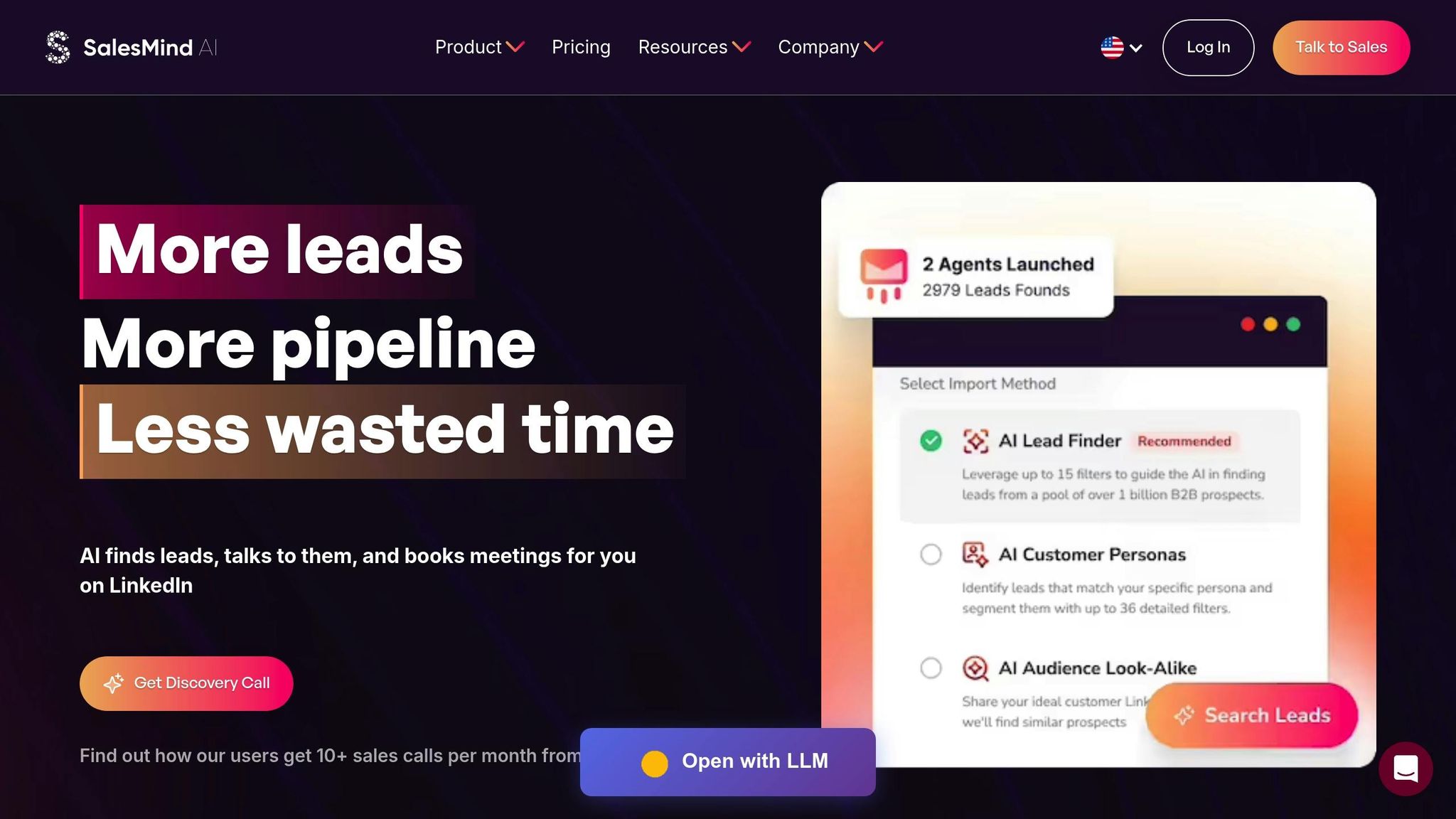
- Sync leads directly from LinkedIn Sales Navigator.
- Enrich contacts with verified emails and phone numbers.
- Save up to 40 hours per week and boost productivity.
By following these steps, you can centralize your LinkedIn leads in your CRM, enabling faster responses and more effective sales operations.
How to Export LinkedIn Leads to any CRM - Quick & Easy Way🚀 | 2025 Edition
What You Need Before Starting
Before diving into the import process, make sure you have everything in place to keep things running smoothly.
LinkedIn Data Export Access
To get started, head to the Data Privacy section under Settings & Privacy on LinkedIn to request a data archive [5][4]. Keep in mind, this process must be done on a computer - LinkedIn's mobile app doesn’t support data exports [5][4].
One important note: you can only export email addresses from connections who have explicitly allowed their first-degree connections to download them [5][4]. As Simone Morgan from Nutshell puts it:
LinkedIn prioritizes user privacy and only includes email addresses in exports when connections have explicitly allowed it in their visibility settings [4].
For connections who haven’t enabled email sharing, those fields will show up blank in your export.
If you’re planning to use Sales Navigator for syncing directly with your CRM instead of handling manual CSV exports, you’ll need to be on the Advanced Plus tier, which is LinkedIn’s highest subscription level [4][6]. For basic exports, though, a standard LinkedIn account works just fine.
CRM Compatibility and Data Preparation
Most CRMs are designed to accept CSV files, and LinkedIn’s data archive usually provides a "Connections.csv" file. This file includes key details like first name, last name, email address (if available), company, job title, and LinkedIn URL [5]. Before importing, open the CSV and compare its column headers with your CRM’s field names. You might need to rename some columns to ensure they match.
Also, check your CRM’s file size limits - many cap imports at around 150 MB or 250,000 rows [2]. Take some time to clean up the CSV by fixing formatting issues, such as removing emojis or special characters [4][2].
Once your file is cleaned up and matches your CRM’s structure, you’re ready to bring in your leads.
Optional Tools for Automation
Manually exporting and managing CSV files can be tedious - and it’s easy for your data to become outdated, considering that over 30% of B2B data changes every year [6]. Tools like SalesMind AI can make life easier by automating this process. Instead of repeatedly exporting, cleaning, and uploading data, these platforms can sync LinkedIn leads directly to your CRM in real time. They can even enrich your contacts by finding verified emails and phone numbers that aren’t included in standard LinkedIn exports, saving you the hassle of manual updates [6].
With these steps covered, you’ll be ready to seamlessly import your LinkedIn leads into your CRM.
How to Import LinkedIn Leads into Your CRM
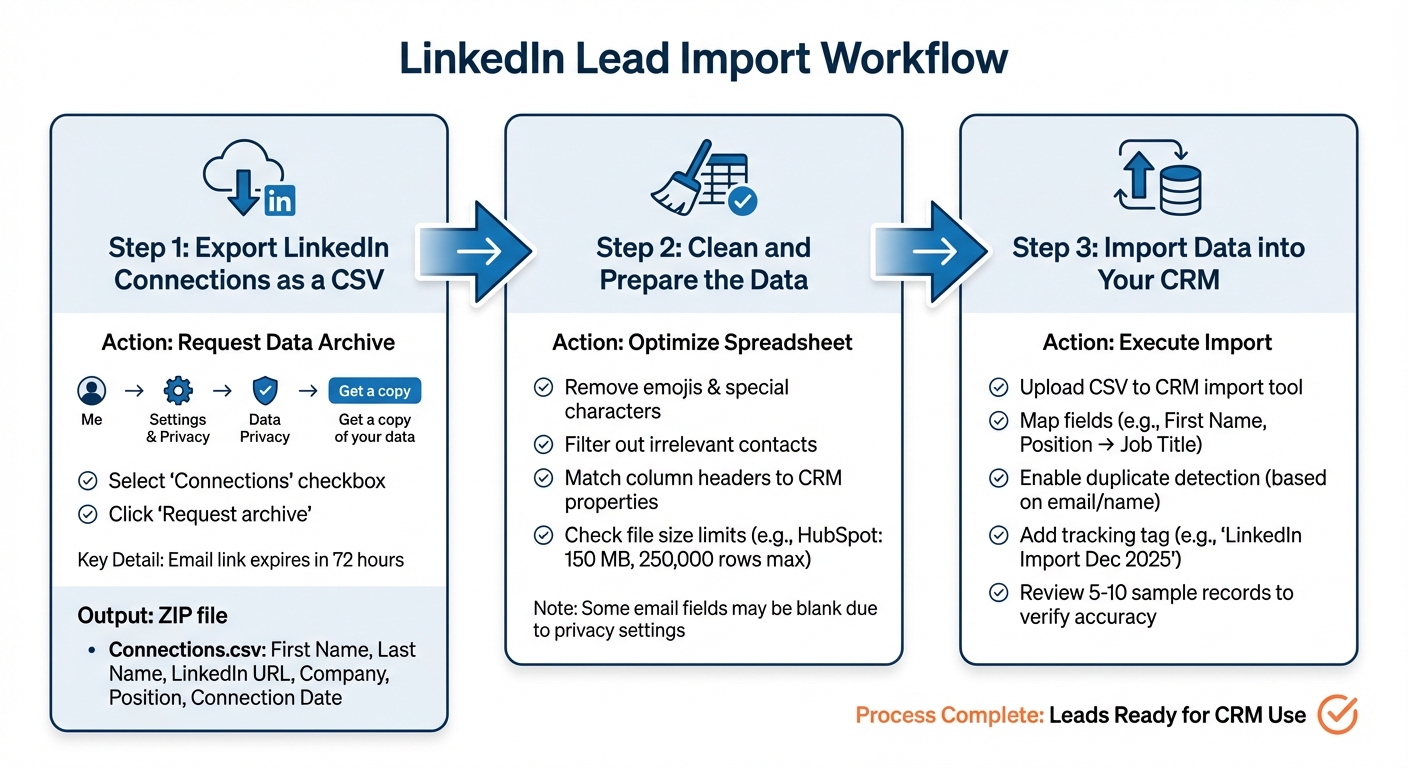
3-Step Process to Import LinkedIn Leads into Your CRM
Once your data is ready, follow these steps to seamlessly bring your LinkedIn leads into your CRM.
Step 1: Export LinkedIn Connections as a CSV
Start by clicking the "Me" icon on LinkedIn, then go to Settings & Privacy → Data Privacy → Get a copy of your data. Instead of downloading your entire data archive, select "Want something in particular?" and check the "Connections" box. Click "Request archive" to proceed. Within minutes, you'll receive an email with a download link[5].
Keep in mind, this link expires after 72 hours[5]. The download will be in a ZIP file containing a Connections.csv. This file includes details like first name, last name, LinkedIn URL, company, position, and the date you connected. Make sure to download this file on a secure device.
Step 2: Clean and Prepare the Data
Open the CSV file and carefully review the data. You may notice that some email fields are blank - this happens because LinkedIn only includes emails if the connection has made them visible. Additionally, remove any emojis or special characters from the name fields to ensure compatibility with your CRM.
Use filters in your spreadsheet tool to eliminate contacts irrelevant to your sales efforts, such as personal connections or outdated leads. Keep only the contacts that align with your business goals. Ensure the file is clean and organized, with column headers that match the property names in your CRM.
Before moving forward, confirm the file size meets your CRM's requirements. For example, HubSpot allows files up to 150 MB and 250,000 rows for standard accounts[2][7].
Step 3: Import Data into Your CRM
Once your CSV is properly formatted, open your CRM's import tool and upload the file. Follow the prompts to map the fields in your CSV to the corresponding properties in your CRM. For instance, map "First Name" to the "First Name" field, "Position" to "Job Title", and so on.
Most CRMs have duplicate detection features, often based on email addresses or names. Use this to identify and resolve duplicates before finalizing the import. To make tracking easier, consider tagging these leads with something like "LinkedIn Import Dec 2025."
After completing the import, review a random sample of 5–10 records to ensure everything has been mapped correctly and the data appears as expected. This final check helps confirm that your LinkedIn leads are ready to be put to work in your CRM.
Automating the Process with SalesMind AI
Manually exporting and importing CSV files is a time drain. Automating lead imports not only simplifies your workflow but also improves the quality of your CRM data, enabling quicker follow-ups. SalesMind AI eliminates this tedious process by directly integrating with LinkedIn Sales Navigator. With just one click, it pulls lead data straight into your campaigns, keeping your workflow smooth and efficient.
Key Features for Automation
SalesMind AI packs a range of automation tools designed to make importing LinkedIn leads effortless. Here's what it can do:
- Instant Lead Import: Pulls search results from LinkedIn Sales Navigator directly into your active campaigns.
- Automatic Syncing: Keeps saved lead lists up-to-date by syncing them automatically.
- One-Click Refresh: Continuously updates your prospect data by adding new leads that match your existing searches.
- Unified Inbox: Brings all LinkedIn conversations into one place, making it simple to track replies and move promising leads to your CRM.
- Advanced Lead Scoring: Ranks contacts based on engagement and profile details, helping you prioritize outreach.
- Shared Team Lists: Prevents duplicate efforts by ensuring everyone on your team works with the same data.
By automating these tasks, SalesMind AI saves users an impressive 40 hours per week - time that would otherwise be spent on manual exports, data cleaning, and syncing tasks. And that’s not all - it also leads to better sales outcomes by ensuring your data is always current and actionable. [8]
Benefits for Sales Teams
Sales teams using SalesMind AI consistently see impressive results. On average, they generate a pipeline value of $100,000 per month, with 40% acceptance rates for connection requests and 45% reply rates. [8]
"SalesMind AI gives us a new channel in LinkedIn sales... It cuts down the working time and helps us close the deals. Best B2B sales product I have ever used."
– Si Wen, Regional Business Manager, ADI Resourcing [8]
The platform's Chrome extension adds another layer of convenience. It keeps LinkedIn sessions active and even provides MBTI personality insights for each prospect. This allows sales reps to customize their messaging before reaching out, giving them a better chance of making meaningful connections. [9]
Best Practices for Managing Imported Leads
Efficiently managing imported leads is critical for maintaining a productive CRM. Poor data management can lead to significant losses - up to $1 trillion annually in lost sales productivity - often caused by duplicate records and manual errors during data entry [1]. By following a few smart practices, you can ensure your CRM stays clean, up-to-date, and compliant, building on earlier efforts to house quality leads.
Enable Duplicate Detection
Before importing any CSV file, activate your CRM's built-in duplicate detection feature. Popular platforms like HubSpot, Salesforce, Pipedrive, and Zoho can automatically identify duplicates by matching email addresses, names, or company records. During the import process, many CRMs offer a "Preview" or "Match" step, allowing you to skip or merge records that share an email or phone number with existing entries.
For extra protection, consider tools like Hublead or Surfe. These browser extensions can check if a LinkedIn profile is already in your database before you add it. To further reduce duplicate entries, ensure unique identifiers - such as LinkedIn URLs or email addresses - are accurately mapped during imports. Regularly schedule audits, either weekly or monthly, to catch redundant entries caused by automation tools or team members.
Keeping your CRM free of duplicates is just the start. Regularly updating your data is equally essential.
Schedule Regular Data Updates
B2B data has a high decay rate, with over 30% becoming outdated annually [6]. Job changes, company closures, and invalid email addresses can all affect your data quality. To stay ahead, schedule regular updates - weekly for active accounts and monthly for broader maintenance.
If you’re using LinkedIn Sales Navigator Advanced Plus, the "Data Validation" feature can be a game-changer. It flags contacts who have switched companies, helping you identify deals that might be at risk [3].
Also, when exporting profiles from LinkedIn, limit daily exports to 200–500 profiles. This mimics natural behavior and reduces the risk of triggering LinkedIn’s security systems [6].
Maintain Data Compliance
Always use tools that connect via LinkedIn's official APIs rather than scraping platforms. Scraping often involves sharing session cookies, which compromises your credentials and violates LinkedIn's security policies. LinkedIn only includes email addresses in exports when users have explicitly allowed it in their privacy settings, ensuring privacy remains a priority.
Use exported data responsibly and solely for legitimate business purposes. Selling user data to third parties is not only unethical but also violates LinkedIn’s terms of service [4]. Make sure your outreach includes clear opt-out options, and promptly honor unsubscribe requests to comply with GDPR, CCPA, and anti-spam laws. While importing your own LinkedIn connections is allowed, it’s crucial to respect both data protection laws and LinkedIn’s User Agreement [4].
Conclusion
Bringing LinkedIn leads into your CRM doesn’t have to be complicated. By sticking to the steps covered in this guide, you can keep all your professional network data in one place, automate workflows, and give your sales team instant access to high-priority prospects.
This approach builds on the groundwork we’ve already discussed. Success comes down to preparing your data properly, enabling duplicate detection, and scheduling regular updates to keep everything current. Relying on manual CSV exports not only wastes time but also increases the chance of errors. These improvements make your CRM a dependable tool for quick and efficient follow-ups.
SalesMind AI takes things a step further with features like 1-click syncing, AI-powered data enrichment, and automatic deduplication. Sales teams using it have reported a 40% acceptance rate, a 45% reply rate [11], and, for some, a 10× boost in productivity [10]. As Alex L., CTO at Slash Co, shared:
"From the very first week, SalesMind AI boosted my productivity in lead prospecting by 10×" [10].
FAQs
How do I accurately import LinkedIn leads into my CRM?
To make sure LinkedIn leads are imported correctly into your CRM, focus on maintaining clean data, setting up proper field mapping, and using dependable syncing methods. Start by exporting your LinkedIn leads through Lead Gen Forms or the LinkedIn Lead Gen API. Once you have the data, review it in a spreadsheet to fix any inconsistencies, and then choose an import method that works with your CRM. Options include manual CSV uploads, built-in syncing via Sales Navigator, or using an automation tool.
When mapping fields, align key LinkedIn data points like First Name, Last Name, Company, and Email with the corresponding fields in your CRM. Be sure to format dates as MM/DD/YYYY and numbers using U.S. conventions (e.g., 1,000 for a thousand). Before importing everything, test a small sample to verify the accuracy of your mapping and address any issues. For ongoing updates, consider automating the process with tools like SalesMind AI to keep your CRM consistently updated with fresh LinkedIn leads.
What are the advantages of using tools like SalesMind AI to automate LinkedIn lead imports?
Using tools like SalesMind AI takes the hassle out of importing LinkedIn leads into your CRM. Instead of wasting time on manual data entry, these tools instantly sync leads, ensuring they’re ready to go in your CRM within seconds. This means sales teams can spend more time building relationships and closing deals instead of getting bogged down by repetitive tasks.
Automation doesn’t just save time - it boosts accuracy, too. With up-to-date and precise data, follow-ups become more effective, and campaigns can yield better results. Plus, features like AI-powered lead scoring and a unified inbox help identify and prioritize top opportunities. This way, you can connect with the right prospects at the right moment, all while cutting down on the effort spent managing manual processes.
What should I do if my LinkedIn data export is missing email addresses?
If your LinkedIn export doesn’t include email addresses, the first step is to pinpoint the rows with blank email fields in your CSV file. You can do this easily using tools like Excel or Google Sheets. Once identified, you have two options: either remove these rows for a cleaner import or fill in the missing data using an email-finding tool.
Chrome extensions can be particularly handy for finding verified business emails linked to LinkedIn profiles. After gathering these emails, make sure to verify them to improve deliverability and avoid bounce issues. Once the emails are verified, update your CSV file and seamlessly import it into your CRM without any hiccups.
For a smoother workflow, you might want to explore tools like SalesMind AI, which can automate the entire process of email enrichment and LinkedIn integration, saving you both time and effort.
 JG
JG