5 Steps to Enrich LinkedIn Data in Your CRM
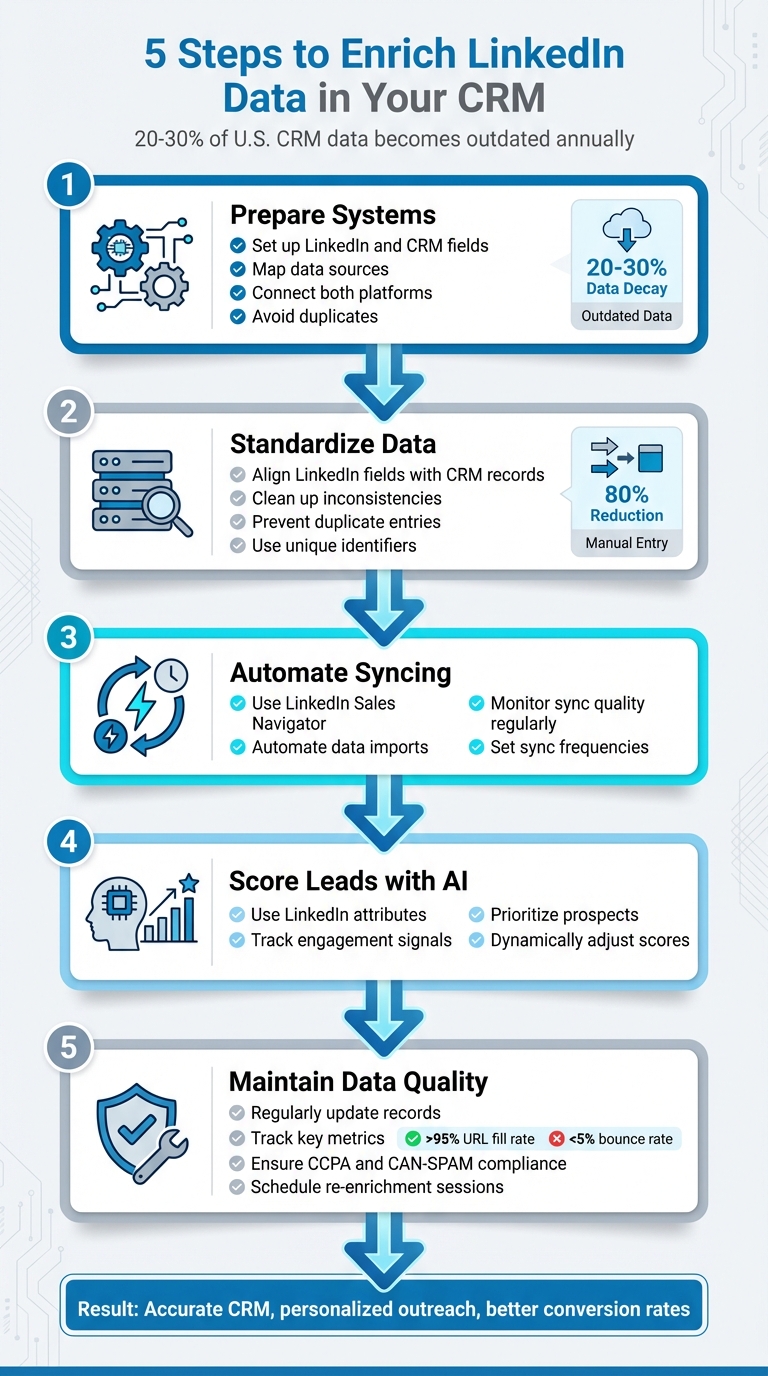
Automate LinkedIn data into your CRM with five steps: prepare systems, standardize fields, automate syncing, score leads with AI, and maintain data quality.
 Julien Gadea
Automate LinkedIn data into your CRM with five steps: prepare systems, standardize fields, automate syncing, score leads with AI, and maintain data quality.
Automate LinkedIn data into your CRM with five steps: prepare systems, standardize fields, automate syncing, score leads with AI, and maintain data quality.
Table of Contents
Enriching LinkedIn data in your CRM boosts accuracy, improves lead targeting, and streamlines sales workflows. With 20–30% of U.S. CRM data becoming outdated annually due to job changes, LinkedIn offers a reliable source for up-to-date professional details. By automating data capture, standardizing formats, and leveraging AI for lead scoring, you can focus on high-value prospects and reduce manual effort. Here's how:
- Prepare Systems: Set up LinkedIn and CRM fields, map data sources, and connect both platforms to avoid duplicates.
- Standardize Data: Align LinkedIn fields with CRM records, clean up inconsistencies, and prevent duplicate entries using unique identifiers.
- Automate Syncing: Use tools like LinkedIn Sales Navigator to automate data imports and monitor sync quality regularly.
- Score Leads with AI: Use LinkedIn attributes and engagement signals to prioritize prospects and dynamically adjust scores.
- Maintain Data Quality: Regularly update records, track key metrics, and ensure compliance with privacy laws like CCPA and CAN-SPAM.
This approach ensures your CRM stays accurate, enabling personalized outreach and better conversion rates. Tools like SalesMind AI can further enhance productivity by automating lead scoring and engagement tracking.
5-Step Process to Enrich LinkedIn Data in Your CRM
Add Prospects To Your CRM & Enrich Data Automatically (with Surfe)
Step 1: Prepare Your LinkedIn and CRM Systems
Getting your LinkedIn and CRM systems ready is crucial. This involves deciding which LinkedIn data you’ll collect, setting up the appropriate CRM fields to store it, and ensuring both platforms can communicate seamlessly. Skipping this step can lead to messy imports, duplicate records, and mismatched fields.
Identify Your LinkedIn Data Sources
LinkedIn provides multiple sources for prospect data. Standard LinkedIn profiles offer essential details like full name, job title, employer, location, profile URL, education, and skills. LinkedIn company pages give insights such as company name, industry, headquarters location, employee count ranges (e.g., 11–50 or 51–200), and website URLs. Teams using LinkedIn Sales Navigator can access even more detailed filters and fields, including seniority level, job function, time in role, department size, and account growth signals. Additionally, some teams may leverage LinkedIn Ads engagement data.
Start by listing the LinkedIn sources you’ll use and identifying the fields you need. Map each field to a specific purpose. For instance, combining job title and seniority can help with territory assignments, while company size and industry inform ICP (Ideal Customer Profile) scoring. Tracking time in a role can highlight prospects during job transitions - ideal moments to introduce your solutions. Also, document who on your team (BDRs, AEs, marketing ops) will use each field and where it will appear in the CRM.
Once you’ve defined your sources, configure your CRM fields to align with this data.
Configure CRM Fields for LinkedIn Data
Accurate CRM field configuration is essential to keep LinkedIn data clean and reliable. After determining the data you’ll import, create or verify CRM fields to store it properly. For person-level records (leads and contacts), you’ll need standard fields like Job Title, Company, Email, Phone, City, State, and Country. Add LinkedIn-specific fields such as LinkedIn Profile URL, Current LinkedIn Headline, LinkedIn Current Role Start Date (formatted as MM/DD/YYYY), and LinkedIn Last Synced On.
For account records, set up fields like LinkedIn Company URL, LinkedIn Company ID (if your integration supports it), LinkedIn Industry (Raw), and a standardized Industry picklist aligned to U.S. segments (e.g., Information Technology, Healthcare, Financial Services). Include fields for Company Size (LinkedIn Range) (picklist options like 1–10, 11–50, 51–200) and HQ City, State, Country (formatted for U.S. addresses like "San Francisco, CA, United States"). Use clear and consistent naming conventions, such as "LinkedIn Profile URL" instead of abbreviations, and ensure field types match the data (e.g., URLs as text, dates as date fields).
Connect LinkedIn to Your CRM
Most major CRMs offer native LinkedIn Sales Navigator integrations. Admins can enable automatic saving of leads and accounts directly from Sales Navigator into the CRM. In LinkedIn’s "CRM Settings", you’ll configure field mappings, set sync frequency, and activate activity writeback to log actions like InMails, messages, and connection requests as tasks.
When mapping fields, use matching keys to avoid duplicate records. Define update rules so LinkedIn only updates enrichment-specific fields (e.g., LinkedIn Headline or Company Size) without altering custom segmentation or lifecycle stage fields. Additionally, configure your CRM’s duplicate management tools (e.g., Salesforce matching rules, HubSpot duplicate management) to rely on email and LinkedIn profile URL as unique identifiers. Testing is critical - pilot your mapping with 10–20 records and confirm accuracy before rolling it out fully.
With your systems set up, you’re ready to automate LinkedIn data capture and complete the enrichment process.
Step 2: Map and Standardize LinkedIn Data
Once your systems are connected, the next step is to ensure LinkedIn data flows into your CRM in a clean and consistent format. Raw LinkedIn data tends to be messy and unstructured. Without proper organization, you could end up with duplicate entries, inaccurate reports, and frustrated sales teams. This step focuses on mapping, standardizing, and deduplicating LinkedIn data to ensure smooth CRM integration.
Map LinkedIn Fields to CRM Records
Begin by aligning LinkedIn fields with the appropriate CRM objects. For example:
- Person-level data (like name, job title, LinkedIn profile URL, email, phone number, location, and seniority) should be mapped to Leads or Contacts.
- Company-level data (such as company name, LinkedIn company URL, employee count, industry, and headquarters location) should be mapped to Accounts.
- Engagement metrics (like InMails sent, connection requests, profile views, and ad impressions) can either be logged as activities or stored in custom fields like "LinkedIn_Ad_Impressions_Last_7_Days" or "LinkedIn_Engagement_Score."
Unique identifiers, such as the LinkedIn Profile URL, should be mapped to custom CRM fields. For example, map the "Current Company" field from LinkedIn directly to the "Account Name" field in your CRM. Scored engagement data can trigger workflows - for instance, if a contact has over 50 LinkedIn ad impressions in the last seven days, you can automatically update their lead score or flag them for immediate follow-up.
Standardize Data Formats
To ensure smooth integration, standardize key data formats according to U.S. standards. For instance:
- Format phone numbers using the E.164 standard.
- Use USPS guidelines for addresses, converting states to two-letter uppercase abbreviations (e.g., "California" to "CA") and normalizing ZIP codes to five-digit formats (e.g., 94105) or ZIP+4 when available (e.g., 94105-1234).
Job titles should also be parsed into standardized categories for better segmentation. For example:
- "VP of Sales, North America" becomes Seniority: VP, Function: Sales.
- "Head of Revenue Operations" becomes Seniority: Director/Head, Function: Operations.
- "Sr. Software Engineer" becomes Seniority: Senior IC, Function: Engineering.
Store these parsed values in dedicated CRM fields so they can be used for lead scoring and segmentation.
Prevent Duplicate CRM Entries
Duplicate records are a common challenge when integrating LinkedIn data. To minimize this, use a hierarchy of unique identifiers. Start with the business email as the primary identifier, followed by the LinkedIn URL. If conflicts arise, flag them for manual review.
Set up deduplication rules in your CRM to align with these identifiers. For example:
- On every data import or sync, the system should first search for a matching email. If a match is found, update the existing record rather than creating a new one.
- If no email exists but a LinkedIn profile URL matches, update that record instead.
- For accounts, match records based on the company domain, normalized company name, and LinkedIn company URL.
Document these deduplication rules in your CRM settings. Make sure all connected tools, such as enrichment platforms and outreach automation software, follow the same logic. This ensures your CRM remains a reliable single source of truth.
Step 3: Automate Data Capture from LinkedIn
Manually entering LinkedIn data into your CRM isn’t just time-consuming - it’s also prone to errors. By leveraging the standardized data from Step 2, you can now automate the flow of LinkedIn information into your CRM, ensuring a seamless and accurate integration. This step involves setting up reliable syncing workflows and regularly monitoring them to maintain data quality.
Set Up Automatic Data Syncing
LinkedIn Sales Navigator offers built-in integrations with platforms like Salesforce and HubSpot, making it easier to automate data syncing. For Salesforce, you’ll need to authenticate through the Sales Navigator Admin Settings. Once authenticated, you can configure sync settings such as field mapping, update frequency, and how duplicates are managed. This integration automatically transfers key details like profile information, company data, InMails, connection requests, profile views, engagement activities, and job change alerts directly into your CRM system[2].
If you’re using HubSpot, head to Settings > Integrations > Connected Apps and connect LinkedIn CRM Sync. This ensures records are updated automatically, with activities like engagement and updates logged seamlessly. Duplicate records are minimized by matching email addresses and LinkedIn URLs.
For syncing LinkedIn Ads data, tools like ZenABM can connect to the LinkedIn Ads API, pulling metrics such as ad impressions at the company level. You can even set thresholds for impressions to trigger deal creation. This enriches accounts with real-time engagement scores based on recent interactions (e.g., the last seven days)[4]. By automating this process, your team can focus on high-priority accounts without the hassle of manual tracking.
For more complex workflows, platforms like SalesMind AI take automation further. They handle LinkedIn outreach while syncing lead interactions back to your CRM in real time. A master dashboard allows your team to track activities across different lead lists and sequences, eliminating the need for manual updates[1]. This creates a closed-loop system where LinkedIn engagement data is automatically updated, triggering follow-ups and keeping your team aligned.
Monitor and Audit Your Automation
Automation works best when it’s accurate and consistent. To maintain reliability, align your audits with existing mapping and deduplication protocols. Regularly review sync logs and field mappings to catch errors early. For Sales Navigator, check the "Configure Settings" section for error alerts, and if you’re using HubSpot, monitor for outdated records to ensure data remains current[2].
Set sync frequencies (e.g., daily) to avoid overwhelming your CRM or hitting API rate limits. For businesses handling large volumes of data, consider staggering sync intervals to keep operations running smoothly[2].
Track key performance metrics to evaluate the reliability of your syncing process. Metrics like sync success rates, duplicate creation rates, data freshness (e.g., job change alerts), and enrichment completeness offer valuable insights. Tools like Tiva can help by providing real-time tracking of profile changes, sending proactive notifications, and automatically updating your CRM with a detailed audit trail of modifications[3].
Platforms like SalesMind AI enhance real-time monitoring. As Rahul P., Senior Advisor at Bounty Media, explains:
"SalesMind AI has proven very useful to our sales team in reducing the massive pain points of manually tracking each and every lead interaction. To have one master dashboard not just for yourself but for our entire team and try different lead lists, sequences, and track them all in real time is fantastic."[1]
Before activating any automation, start with a clean slate. Remove duplicates, invalid contacts, and leads that don’t align with your ideal customer profile. This ensures your CRM remains free of clutter, helping your sales team stay focused on high-quality prospects[5].
sbb-itb-817c6a5
Step 4: Score and Qualify Prospects with AI
Once your data is seamlessly integrated into your CRM, the next step is identifying which prospects are worth pursuing. Raw data alone won't tell you who's ready to buy or which accounts align with your ideal customer profile. This is where AI-driven lead scoring comes into play, turning LinkedIn-enriched attributes into actionable insights that help your sales team focus on high-value opportunities.
Build Lead Scoring Models with LinkedIn Data
Lead scoring combines two key factors: fit and engagement. LinkedIn data forms the backbone of fit scoring by highlighting attributes like job seniority, company size, industry, and location. For example, you could assign higher scores to senior-level roles or companies within your target size range, while deducting points for outdated or irrelevant information.
To set this up in tools like Salesforce or HubSpot, start by mapping LinkedIn fields (such as job title, seniority, company size, and industry) into custom CRM fields during your integration process. From there, create scoring rules using formula fields or workflows that automatically adjust scores based on specific criteria. Test your model on a sample group, and make it a habit to review and refine scores monthly.
Keep in mind that scoring should be dynamic. Run campaigns using your initial model, then analyze which LinkedIn data points are most closely tied to meetings booked or deals closed. For instance, if prospects from companies using certain tools in your ecosystem have higher conversion rates, add that factor to your scoring model. Conversely, if certain industries underperform, adjust their point values or remove them entirely. This iterative process lays the groundwork for incorporating AI to further enhance your scoring.
Leverage SalesMind AI for Smarter Scoring
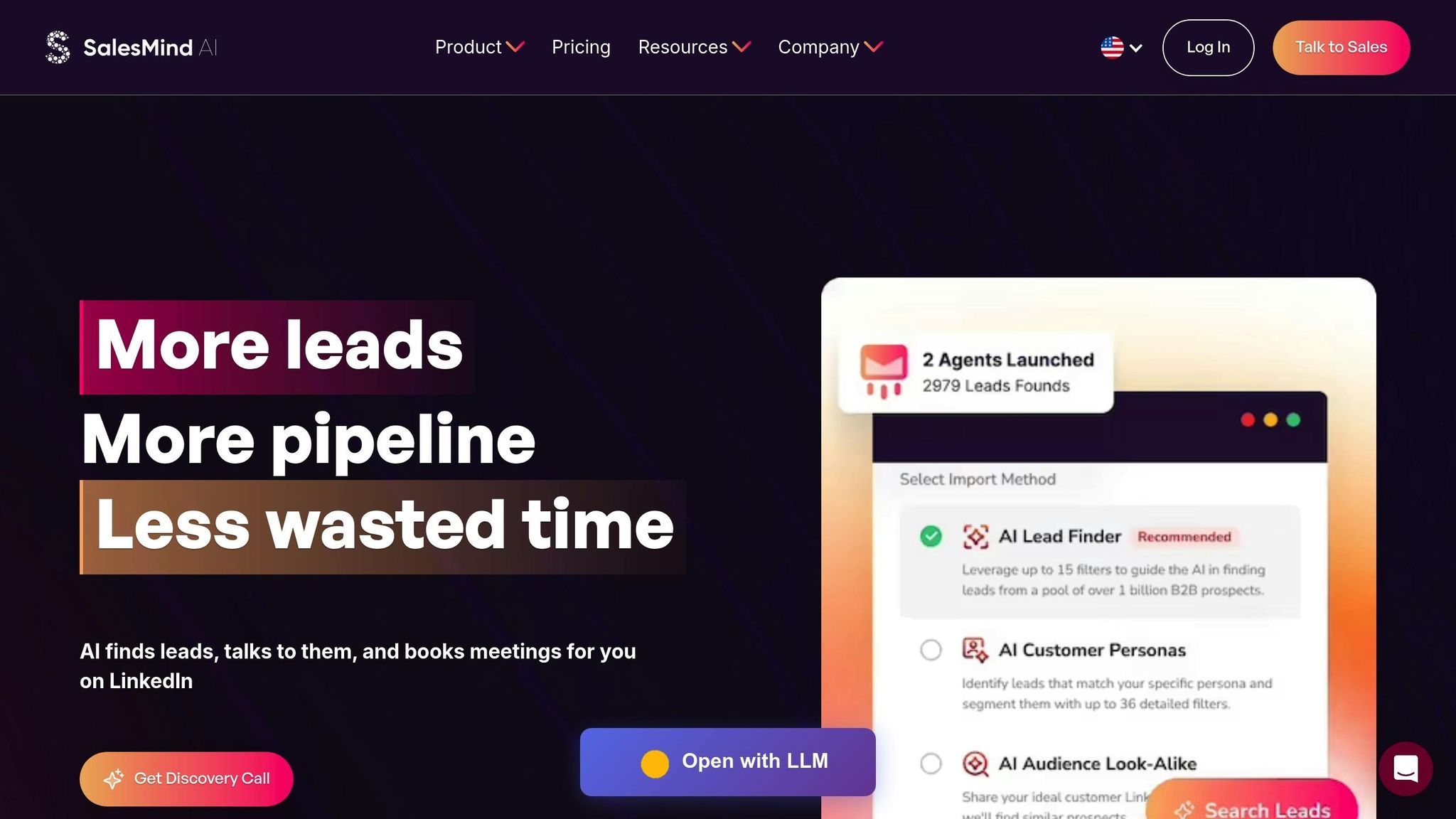
AI takes lead qualification to the next level by uncovering patterns that might not be immediately obvious. Platforms like SalesMind AI enhance your scoring model by combining profile data with behavioral signals. For example, it uses LinkedIn attributes like job title, seniority, and industry alongside behaviors such as email opens, replies, and LinkedIn engagement to generate dynamic lead scores. As Svit Babarovic from MountainDrop puts it:
"The lead scoring system is particularly impressive, providing clear insights into lead quality."
SalesMind AI also analyzes historical win data to identify prospects that resemble your best customers. As Jure, CEO of Jure Design, explains:
"I like that it shows you a score on what the lead suitability with your filters is."
This automation saves your team from manually evaluating each lead. Instead, the platform highlights high-intent prospects, allowing your sales reps to focus their efforts on leads most likely to convert. Scores are updated in real-time as prospects interact with your content, ensuring your pipeline reflects current buying signals rather than outdated information.
Distribute Qualified Leads Strategically
Once your lead scores are optimized, the next step is assigning them to the right sales reps. High-scoring leads (80 or above) should go directly to account executives with a service-level agreement (SLA) for follow-up within one business hour. Mid-tier leads can be routed to SDRs for nurturing, while lower-scoring leads remain in marketing automation until their profile or behavior changes.
In your CRM, set up workflows to automate this process. For example, a lead scoring 85 from a 500-person SaaS company in California might be automatically assigned to your West Coast enterprise rep. Meanwhile, a 70-scoring lead from a 100-person healthcare firm could be routed to your SMB specialist. By using LinkedIn-enriched data - such as industry and seniority - you can ensure each lead is directed to the rep best suited to close the deal, boosting both efficiency and win rates across your team.
Step 5: Maintain Data Quality Over Time
Adding LinkedIn data to your CRM isn’t a one-and-done deal. B2B contact data can become outdated fast - studies show it decays by 30–70% annually[5] due to job changes and company moves. If you don’t keep your database up to date, you’ll end up with bounced emails, wasted outreach efforts, and missed opportunities. That’s why regular maintenance and updates are essential to ensure your data stays relevant.
Track Data Quality Metrics
To stay ahead of data decay, keep an eye on key performance indicators (KPIs) like LinkedIn URL fill rates (>95%), field match accuracy (90–98%), and email bounce rates (<5%). Here’s why these matter:
- LinkedIn URL fill rates: This measures how many CRM records have valid LinkedIn profile URLs. Low rates might signal sync issues.
- Data match rates: These track how well fields like job titles and company names match LinkedIn profiles. Conduct regular audits to spot discrepancies.
- Email bounce rates: After enriching your data, bounce rates should drop below 5%. If they don’t, it’s a sign your contact info might be outdated.
Other valuable metrics include field completeness (ensuring critical fields like job title, company size, and location are filled) and data freshness, which tracks how recently records were updated. For example, many Salesforce users report an 80% reduction in manual data entry[2] and more accurate job titles through automated job change alerts, helping them avoid contacting people who’ve already moved on.
Schedule Regular Data Updates
Keeping your CRM data accurate requires a mix of automation and manual checks. Set up automated syncs - hourly or daily - to ensure fields stay current. Tools like Sales Navigator’s auto-save feature can automatically track job changes and update CRM records, cutting down on manual work. Additionally, schedule weekly or monthly re-enrichment sessions and run daily deduplication scans using LinkedIn URLs as unique identifiers.
Every so often, conduct bulk cleanups to archive or remove outdated contacts, like those who left their companies years ago. Apply validation rules to enforce consistent formatting for fields like U.S. state abbreviations, phone numbers, and industry classifications. It’s also helpful to establish clear ownership rules for fields - decide whether LinkedIn job titles should always replace CRM titles or require manual review. To keep track of updates, store last-verified dates in a dedicated field for easy auditing.
Follow Privacy and Compliance Rules
Maintaining compliance is just as important as keeping your data accurate. Make sure your enrichment process aligns with privacy laws like CCPA/CPRA, CAN-SPAM, and TCPA:
- CCPA/CPRA: Provide clear notices about data collection and offer opt-out options.
- CAN-SPAM: Respect email unsubscribes.
- TCPA: Obtain consent before sending SMS messages or making autodialed calls.
Document every step of your enrichment process, including the vendors you use, the fields you import (e.g., LinkedIn URLs, job titles, company details), and the legal basis for collecting this data. Limit access to enriched data so only authorized sales and marketing staff can view or export it. Keep detailed audit logs to track changes, and establish internal policies to ensure your team uses LinkedIn-enriched data responsibly, staying within LinkedIn’s platform rules and privacy regulations.
Conclusion
Adding LinkedIn data to your CRM lays the groundwork for more focused outreach, better conversion rates, and smoother workflows - saving your team countless hours of manual effort each week. By setting up your systems correctly, standardizing your data, automating data capture, scoring leads with AI, and keeping your database accurate over time, you create a reliable resource that helps your sales team focus on the right opportunities at the right moment. Together, these steps turn your CRM into a powerful sales tool.
Sales teams that follow this approach often see stronger connection rates and more meaningful interactions with prospects. Your team will know exactly who to reach out to, what matters to them, and the perfect timing for engagement. This means more scheduled meetings and closed deals.
Beyond automation, these techniques offer a significant boost in efficiency. SalesMind AI takes it a step further by integrating AI-powered lead scoring, automated messaging, and a unified inbox to simplify LinkedIn interactions. Users have reported remarkable gains, including a tenfold increase in productivity during lead prospecting within the first week. Many also see 5 to 10 new conversations initiated weekly when operating at full capacity. Henry F., an Enterprise Account Executive at Salesforce, shared his experience:
"Having used the free trial for only 8 days, I am already getting 4-5 responses per day."[1]
Leveraging enriched LinkedIn data transforms your CRM from a static list of contacts into a dynamic, results-driven sales system. Instead of wasting time on outdated leads, your team can focus on prospects who are genuinely ready to engage. Start small to refine your process, emphasize quality over quantity, and always stay compliant with privacy regulations like CCPA and CAN-SPAM. By maintaining high data standards and consistent outreach, you’ll set your sales team up for lasting success.
Ready to see it in action? Learn how SalesMind AI combines advanced lead scoring, seamless integration, and personalized AI-driven tools to help you achieve these results.
FAQs
How can I maintain accurate data when connecting LinkedIn to my CRM?
To ensure your CRM data stays accurate when syncing with LinkedIn, make it a habit to verify and clean your records regularly. Leveraging automated tools can simplify tasks such as lead qualification and updating records, helping maintain consistency across platforms. It's also a good idea to cross-check LinkedIn profiles against your CRM data to identify and fix any mismatches. Taking these steps ensures your CRM remains dependable and up-to-date.
What are the advantages of using AI for lead scoring in your CRM?
AI-driven lead scoring within CRM systems brings a host of benefits to the table. For starters, it sharpens accuracy by pinpointing high-potential leads, ensuring sales teams spend less time chasing unqualified prospects. This automated process frees up valuable time, allowing teams to zero in on opportunities that truly matter.
With data-backed insights, AI doesn't just prioritize leads - it transforms how businesses approach sales. By focusing efforts on the right prospects, teams can work more efficiently and see higher conversion rates. Plus, it simplifies workflows, enabling companies to engage with leads more strategically and expand their outreach efforts with greater confidence.
How can I ensure compliance with privacy laws when using LinkedIn data in my CRM?
To ensure compliance with privacy laws such as GDPR and CCPA when working with LinkedIn data, it's crucial to obtain clear and proper consent before collecting or using personal information. Always respect users' privacy settings and ensure that any data collected is strictly used for valid business purposes.
Make it a habit to regularly review your data handling practices to stay aligned with the latest regulations. Incorporate privacy-by-design principles into your processes to safeguard user information from the outset. If you're unsure about specific requirements, seek advice from legal professionals and adhere closely to LinkedIn’s terms of service to prevent any potential violations.
 JG
JG